Computer Fundamentals and Applications
Course Description:Unit-1: Introduction to Computer System
Contents: Introduction to Computer, Characteristics, Applications and Classification of Computer, Mobile Computing, Anatomy of a Digital Computer, Computer Architecture, Memory and its Classification, Input and Output Devices, Interfaces.
Introduction
A computer is an electronic machine that takes input from a user, processes the given input and generates output in the form of useful information.
A computer accepts inputs in many forms such as data, programs and user reply.
DATA -> raw details that require processing for generating useful information
PROGRAM -> set of instructions that can be executed by computer in sequential or non-sequential order
USER REPLY -> input provided by the user in response to query asked by computer
Characteristics
1. Speed
A computer can do any tasks in fractions of a second. The speed of the computer is based on its hardware configuration.
2. Storage Capacity
A computer can store a huge amount of data in many different formats.
3. Accuracy
A computer carries out any calculation with a 100% accuracy. However, this depends on the configuration of the system and instruction from the user.
4. Reliability
A computer process results with 0 error. Mostly the error generated in the computer is due to the user’s fault.
5. Diligence
A computer can be set to perform repetitive tasks for numerous times and the result will always be displayed with the same accuracy and efficiency. Computers aren’t affected by human traits like dizziness, fatigue, distraction, tiredness, etc.
6. Versatility
The same computer can be used for many different tasks for many different purposes.
Evolution of Computer
1. Mechanical Era
2. First Generation Computer
Employed: 1940 – 1956
Technology used: Vacuum Tube
Tasks done: Mathematical Calculation
Advantages: fast computing in their time, executed complex mathematical problems in an efficient manner
Disadvantages: Operated on machine language (0s and 1s), not flexible for running different applications, large and bulky in size and consumed high power
3. Second Generation Computer
Employed: 1956 – 1963
Technology Used: Transistors
Improvements: development of printer, secondary storage, operating system technology, replacement of machine language with assembly language
Tasks done: Mathematical Calculation
Advantages: fast computing in their time, easy to program (assembly language), smaller in size and consumed less power
Disadvantages: I/O devices not improved to a considerable extent, generated a huge amount of heat, beyond the access of households
4. Third Generation Computer
Employed: 1964 – 1975
Technology Used: Integrated Circuits (I.C.)
Improvements: I.C.s made the size of computer smaller, performance efficient and faster and reliable
Advantages: computational time reduced to nano-seconds, use of high-level language
Disadvantages: low storage, costly
5. Fourth Generation Computer
Employed: 1975 – 1989
Technology Used: LSI, VLSI
Improvements: GUI, new Operating System, development of LAN
Advantages: Size and cost minimized, accessible by home users
Disadvantages: complex microprocessor design and fabrication,
6. Fifth Generation Computer
Employed: 1989 onwards
Technology used: ULSI
Improvements: portable computers – laptop, pocket computer, PDA, etc. developed, developed parallel processing, invention of optical disk technology, Internet invented
Advantages: True AI, advanced parallel processing, portability, superconductor technology
Disadvantages: sophisticated and complex tools
Classification of Computer
| S.No. | Basis of Classification | Types |
|---|---|---|
| 1 | Operating Principle | Analog, Digital, Hybrid |
| 2 | Application | General Purpose, Special Purpose |
| 3 | Size and Capacity | Micro, Mini, Mainframe, Super Computer |
Anatomy of digital computer

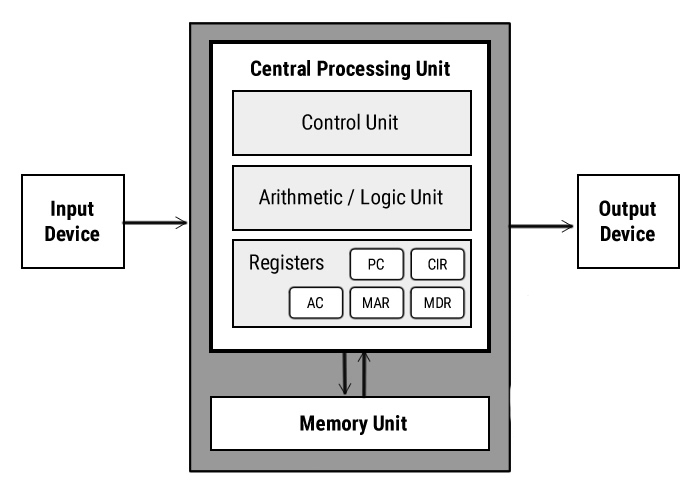
1. Central Processing Unit
It is responsible for processing the data inside the computer system. It is also responsible for controlling all other components of the system.
The main operation of the CPU includes four phases
– Fetching instruction from memory
– Decoding the instruction to decide what operation are to be performed
– Executing Instructions
– Storing the result back into memory

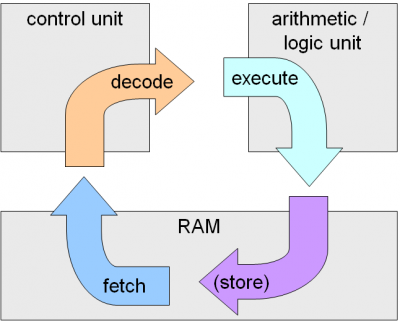
Components of CPU
1. Arithmetic/ Logical Unit
ALU does arithmetic and logical operations. Arithmetic operations include addition, subtraction, multiplication and division. The arithmetic unit takes input instruction in the following form:
opcode + operand + format code
opcode – operation
operand – data
format code – format of the operand, e.g. fixed-point or floating-point
The logical unit operates the data logically. Logical operations include greater than (>), less than (<), equals to (=), not equal to (! =), shift left, shift right, etc. This unit makes use of logical gates (AND, OR, NAND, NOR, etc.) to perform logical operations.
2. Control Unit
This unit of CPU controls the flow of data and information. It maintains the sequence of operation being performed by the CPU. The control unit fetched instruction from storage area, decode the instructions and transmit the corresponding signal to ALU and the storage registers.
3. Main Memory
(discussed below)
2. Memory
1. Main Memory
RAM is the primary or main memory. It is volatile in nature and holds the data for a short period of time only, that is only until the system is running. Files and instructions are saved in different secondary storage systems and they are fetched to the RAM before the execution. This technique is known as swapping. Memory space available in the main memory directly affects the speed of the computer.
2. Cache Memory
It is the smallest and fastest form of memory. The contents that require to be fetched frequently are stored in the cache memory. Therefore, the processor before looking for the content in RAM checks here and goes to RAM only if the content isn’t available here.
Cache memory is always placed between RAM and the processor.
3. Register
There are special-purpose temporary storage units which are called registers. They are the form of memory with the highest transfer speed. These registers are used for holding instructions, data and intermediate results that are currently being processed.
Examples: Program Counter (PC), Instruction Register, Memory Address Register, Memory Buffer Register, Memory Data Register, Accumulator, etc.
3. Input Device
They are the computer peripherals that are used to send input signals to the computer for processing. The basic input device is keyboard.
Example: mouse, scanner, digital camera, etc.
4. Output Device
They are the computer peripherals that are used to display the results of the processed data. The basic output device is monitor.
Example: speaker, printer, etc.
5. Mass Storage Device
They are the peripherals that are used to store the processed data for future references.
Example: Hard Drive, Solid State Drive, flash drive, etc.
Memory and Storage System
Besides processing data and getting the results for immediate use computer is used for storing data as well. Therefore, there are two types of memory in a computer system, one for storing data that are currently being handled by the CPU and another for storing data and results for future reference.
The storage system used for handling the running process is called primary memory. They are temporary in nature. And the storage which is used to store data and information for longer-term is called secondary memory.
The data and information held by the primary memory can be directly accessed by the CPU using data and address buses. However, the data stored in the secondary memory is to be fetched to the primary memory through I/O channel first and the CPU reads the data from the secondary memory via the primary.
There is a third type of memory as well which is known as internal process memory. These are placed either near to the CPU or inside the CPU itself.

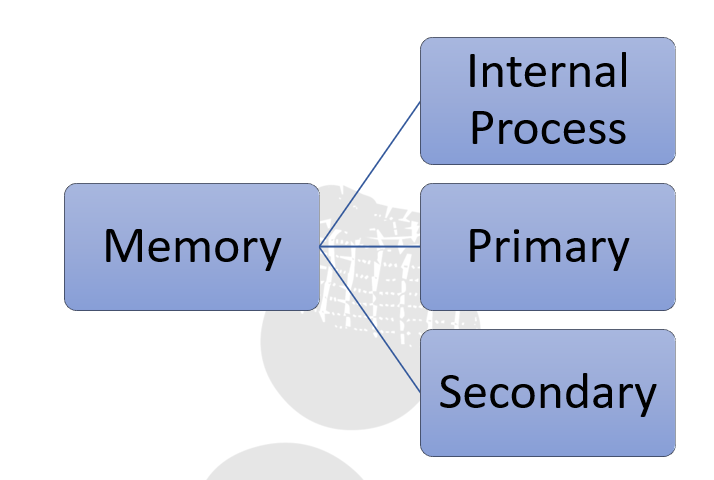
Memory Representation
1 Byte = 8 Bits
1 KB = 1024 Bytes
1 MB = 1024 KB = 1048576 Bytes
1 GB = 1024 MB = 1073741824 Bytes
1 TB = 1024 GB = 1099511627776 Bytes
Primary Memory

1. RAM
It is volatile in nature and loses all its content once the power of the computer is turned off. Hence RAM is used for storing the data and instructions only during the processing. Unlike Secondary form of memory, it is faster in data transfer. It is the internal memory. It is also called Read/ Write memory as it can perform both read and write operations.
Ram can be further categorized into two types.

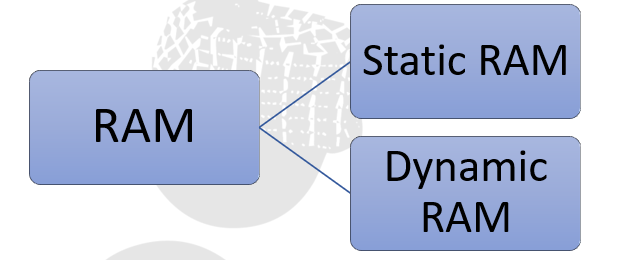
i. SRAM
In this type of RAM data is stored only until the power of the computer is on. It uses numbers of transistors to store a single bit of data. Based on the functioning nature it can be further classified as
a. Asynchronous SRAM
It performs operations without the use of a system clock. It makes use of three signals for working, i.e. chip select (CS), write enable (WE) and output-enable (OE).
b. Burst SRAM
It works in association with the system clock. Therefore, it is also known as synchronous SRAM. It is used with high-speed applications as the read and writes cycles are synchronized with the clock cycle of the processor. The access waiting time gets reduced after the read and write cycle are synchronized.
c. Pipeline Burst SRAM
It uses the pipeline technology in which a large amount of data is broken up into different packets containing data. These packets are arranged in a sequential manner in a pipeline form and are sent to the processor simultaneously. It can handle a large amount of data at a very high speed. In fact, it is the fastest form of SRAM.
ii. Dynamic SRAM
In this type of RAM, data is stored in a storage cell consisting of transistors and capacitors. Unlike SRAM, DRAM needs to be refreshed continuously with the power supply because the capacitor has the tendency to get discharged. The DRAM is of four types.
i. Synchronous DRAM
It performs operations in association with the system clock cycle. It is used with the processor for storing data continuous manner. The continuous form of data storage helps in processing a greater number of instructions per unit time which ultimately increases the speed of data transfer.
ii. Rombus DRAM
It contains multiple addresses and data line that helps in increasing the data access speed. It is faster than Synchronous DRAM.
iii. Extended Data Out DRAM
It can access more than a bit of data at a time which helps in increasing data access rate. It allows to perform various tasks at a time such as read and write.
iv. Fast Page Mode DRAM
It makes use of paging in which read and write operation is performed by selecting the address of data from rows and columns of the matrix. Use of paging doesn’t allow the use of bus at the memory of 66 MHz because of which reading and writing data from matrix consumes a lot of time.
2. ROM
ROM stores data permanently. This means unlike RAM; it can retain data even after the computer is turned off. Generally, contents of ROM cannot be erased, modified or changed. Devices such as calculator, laser printer, etc. use ROM. It allows sequential access to data. It is divided into four types.

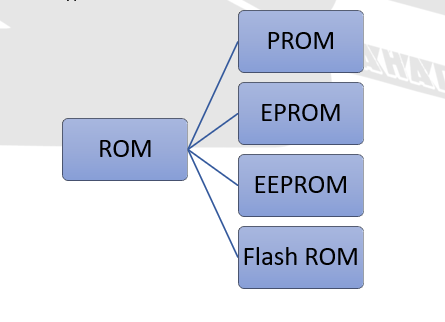
i. Programmable ROM (PROM)
It is a memory chip on which write operation can be performed only once. The data on this ROM is written permanently and cannot be erased afterwards. The writing process on such ROM is called ‘Burning ROM’. It is mostly used in video games and electronic dictionaries.
ii. Erasable Programmable ROM (EPROM)
In such type of ROM, data can be erased or destroyed using Ultra-Violet (UV) rays. In such, the facility of changing the content is available. It facilitates the storage of data for longer terms.
iii. Electrically Erasable Programmable ROM (EEPROM)
It is the type of ROM in which data can be erased or destroyed electrically with the means of electric charge. Here, data can be written or read at the rate of one bit per unit time which makes it slow.
iv. Flash ROM (FROM)
It is a variation of EEPROM that uses floating gate transistors which can store data for a longer period of time. It is mainly used in mobile phones, digital cameras, etc. It is the fastest form of ROM. It uses continuous memory cells for storing data. It is of two types.
a. NAND Flash ROM
b. NOR Flash ROM
Secondary Memory/ Storage System
1. Magnetic Storage System
i. Magnetic Tapes
They are plastic tapes with a magnetic coating that are used for data storage. They are similar to normal recording tapes which can be used for storing audio and video. Data can be accessed sequentially.
Advantages:
– low cost and high storage
– easily transportable
– easy to handle and store
Disadvantages:
– low data transmission due to a sequential transmission
– low life duration
– required protected environment for storage
ii. Magnetic Disks
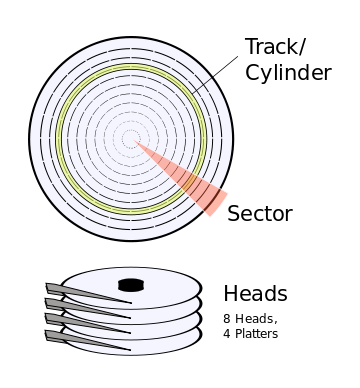
It is a flat disk covered with magnetic coating for holding information. It is used to store digital information in the form of small and magnetized needles. It is large in storage size and cheaper than RAM. It allows random access to data and provides the facility of erasing and recording data as many times as required.

Advantages:
– High storage capacity and low cost
– Easy and direct access to data
– Less prone to corruption of data compared to magnetic tapes
Disadvantages:
– Prone to physical damage since it has a physical moving part
– Slower than SSDs
2. Optical Storage System
This storage system uses the laser light as the optical medium to retrieve as well as record data.
Example: CD-ROM, DVD, CR-R, CD-RW, DVD-R, DVD-RW
They are non-volatile and reliable compare to magnetic tapes.
Advantages:
– Large storage capacity
– Longer life-span than magnetic tapes
– Low ‘cost-per-bit’ for storage
– Portable
Disadvantages:
– Prone to scratches which could disturb or totally prevent the driver to perform R/W operations
3. Magneto-Optical System
It includes the features of both optical and magnetic disks. Its main objective is to store the data on personal computers for a longer period of time. It performs R/W operation by making use of laser and optical technology. It has ferromagnetic particles enclosed in a plastic coating. The laser beam used for R/W operation gets reflected due to magnetic surface of the disk.
It is slower in speed but its manufacturing cost is high.
4. Solid State Drive (SSD)
It is the device that contains all the properties of a hard drive to store the data and uses the solid-state memory which has no moving part. It uses semiconductors to store data. Its main principle is to process data electronically. Since it has no mechanical moving part, the data access time is faster than that in HDD.
Advantages:
– Better performance – high access speed, random access of data, faster R/W operation
– Low power consumption
– Highly reliable
– Small dimension/ compact size
Disadvantages:
– High cost
– Lower capacity
– Low storage density
– Vulnerable – data loss, affected by power loss, electrostatic discharges and magnetic fields
Interface
A system of interaction or communication between a computer and another entity such as printer, another computer network or a human user. Devices such as cable, network card, monitor or keyboard that enables interaction or communication between computer and other entity.
Interface is of three types.
1. Hardware Interface
Hardware interface exists in many of the components such as buses, storage devices, other I/O devices, etc. A hardware interface is described by mechanical, electrical and logical signal at the interface and protocols for sequencing them. Hardware interfaces can be parallel with several electrical connections carrying parts of data simultaneously or serially where data can be sent one bit at a time.
Serial -> 1 bit at a time
Parallel -> 1 word at a time
2. Software Interface
A software interface may refer to a wide range of different types of interface at different types of interfaces at different levels – an operating system may interface with a piece of hardware; application or program running on the operating system may need to interact via data streams, filters and pipelines. In Object oriented program, object within an application may need to interact via methods.
3. User Interface
A user interface consisting of a set of dials, knobs, operating system commands, graphical display formats and other devices provided by a computer or a program to allow the users to communicate or use the computer or program. The popular means of user interface is Graphical User Interface (GUI) which provides pictorial (picture-oriented) way to interact with the system. GUI is easier to use and user-friendly interface.
Mobile Computing
Mobile computing is human-interaction by which a computer is expected to be transported during normal usage which allows transmission of data and information in different available forms. This involves mobile communication, mobile hardware and mobile software.
• Mobile communication issues include ad-hoc networks and infrastructure networks as well as communication properties, protocols, data formats and concrete technologies.
• Mobile software deals with the characteristics and requirements of a mobile application.
Example: smartphone, smart card, laptop, wearable computer, etc.
Principles of Mobile Computing
1. Portability – facilitate movement of device within the mobile computing environment
2. Connectivity – availability to continuous connection w/ minimal lag & no interruption while movement
3. Social Interactivity – maintaining the connectivity to collaborate w/ other users
4. Individuality – adapting technology to meet individual needs
Unit-2: Computer Software
Contents: Introduction to Software, Types of Software, Program vs Software, Computer Virus and Antivirus
Introduction to Software
Among the two major components of a computer system, Software is one while Hardware being the other. Software refers to a set of computer programs and related data that provide the instructions for telling a computer what to do and how to do. It is a set of instructions that guides the hardware and tells it how to accomplish each task.
Hardware refers to the physical equipment that is necessary for performing various operations such as storing results and providing output to users in the desired form.
Types of Software

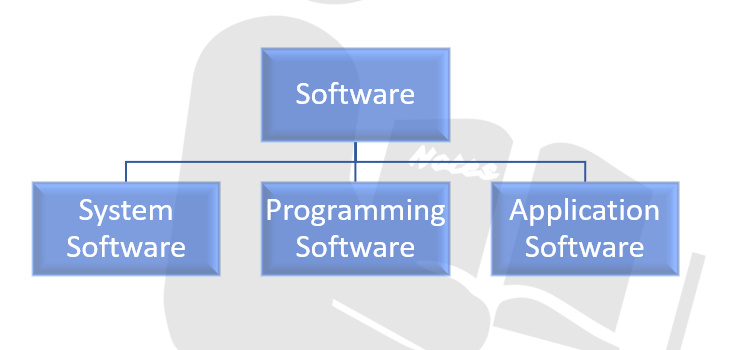
System Software
It is a type of computer software that is designed to operate the computer hardware so that the basic functionality and a platform for running application software are provided. Operating System and all other utility programs that manage computer resources at low level are system software.
Example: BIOS (Basic Input/ Output System) gets the computer system started after you turn it on, and it manages that data flow between the operating system and other attached devices such as hard disk, video adapter, etc. System utilities such as the disk defragmenter and system restore are also system software.
Programming Software
It includes tools in the form of programs or applications that software developers take in use to create, debug, maintain and support other programs and applications. Compiler, debugger, interpreter, linker and text editor are the parts programming software.
1. Compiler
They convert a high level language program into a low-level language program.
2. Assembler
They convert an assembly language program into low-level language programs.
3. Interpreter
It processes high-level language line by line and simultaneously produces low-level programs.
4. Linker
Most low-level languages allow the developer to develop a large program containing multiple modules. Linker arranges the object code of all the modules that have been generated by the language translator into a single program.
5. Debugger
It is a software that is used to detect the errors and bugs in programs. It locates the position of errors in the program codes.
6. Text editor
It is a program that allows the user to work with texts in a computer system. It is used for documentation purpose and enables us to edit information present in an existing document or file.
Example: C, C++, C#, BASIC, Java, Python, etc.
Application Software
It is a program of a group of programs designed for individual users. It allows end-users to accomplish one or more specific non-computer related task.
Example: Word processor, presentation software, data management system, desktop publisher, web browsers, etc.
Program vs Software
Software is the superset of programs in which one or many programs are executed sequentially or simultaneously to perform a particular job. It is the end product of a set of programs.
Example: MS-Excel
A program is a combination of lines of codes which takes input works on instruction on a computer to generate output. A program is the group of instructions which when performed will generate a logical output.
Example: addition or subtraction operation in MS-Excel
Summarizing, the program is a set of instructions that are executed by a computer, whereas software is a set of programs.
Example: the calculator is a software whereas addition, subtraction, etc. are set of programs that exist in the calculator
Computer Virus ad Antivirus
Computer Virus
A computer virus is a set of malicious code or program written to alter the way a computer operates. It is usually designed to spread from computer to computer. A virus operates by inserting or attaching itself to a legitimate program or document support macros in order to execute the codes.
A virus has the potential to cause unexpected or damaging effects such as harming system software by corrupting or damaging data. Once a virus successfully attaches itself to a program, file or document, the virus will remain dormant until circumstances cause a computer to execute its code. In order for a virus to infect any computer, the infected program has to be run in order for the code to be executed.
Signs of Computer Virus
1. Frequent pop-up windows
2. Changes your homepage
3. Mass email being sent from your email account
4. Frequent crashes
5. Slow computer performance
Different types of Virus
1. Boot sector virus
This type of virus can take control when you start or boot your computer. It spreads by plugging Flash drives.
2. Web scripting virus
This type of virus exploits the code of web browsers and webpages. It spreads through infected webpages.
3. Browser hijacker
This type of virus hijacks certain web browser functions and might automatically be directed to unintended sites.
4. Resident virus
This is the general type of virus that inserts itself in a computer system memory. A resident virus can execute at any time when the operating system loads.
5. Direct-action virus
This type of function comes into action when you execute a file containing a virus otherwise it remains dormant.
6. Polymorphic virus
A polymorphic virus changes its code each time the infected file is executed. It does this to invade antivirus.
7. File infector virus
This common virus inserts malicious code into executable files. i.e. files used to perform certain functions or operations on a system.
8. Macros virus
Macros virus are written in some macro language used for a software application. Such virus spread when you open an infected document often through an email attachment.
Antivirus
Antivirus is a type of program designed and developed to protect a computer from malware like computer virus, worm, spyware, botnets, boot-kits, keylogger, etc. Antivirus function to scan, detect and remove such viruses from the computer. Most antivirus incorporates both automated and manual filtering abilities. Instant scanning option may check files downloaded from the internet, disks that are embedded into PCs and files that are made by software installers.
Features of Antivirus
1. Default deny protection
It is implemented to prevent the entry of suspicious files by default.
2. Auto sand-box technology
A virtual environment where suspicious and unknown files are secluded and run to check for any malicious activity without interfering the normal operations.
3. Containment technology
It validates and authorizes the programs that are executable and ensure that processes are running without affecting the regular operation of the system.
4. Host intrusion protection system (HIPS)
It terminates any malicious activity once found. This prevents malware from infecting the operating system, registry keys, personal data or the system memory.
Comments
Post a Comment